
Setup guide
This guide takes a phone from a fresh install to a working group. It follows the order that works best in practice: first the person the group is for, then the people who will come, then the settings, and the watch last. What each part does, and why, is explained in How it works; this page is about where to tap.
The screens below were taken on ordinary Android phones. The iPhone app is in open testing on TestFlight and has the same screens, in the iPhone’s design. Names, addresses and maps have been blurred.
1. Install and register
Install MyHelpGroup on the phone of the person the group is for, and on the phone of everyone who will be in the group. Each person registers on their own phone.
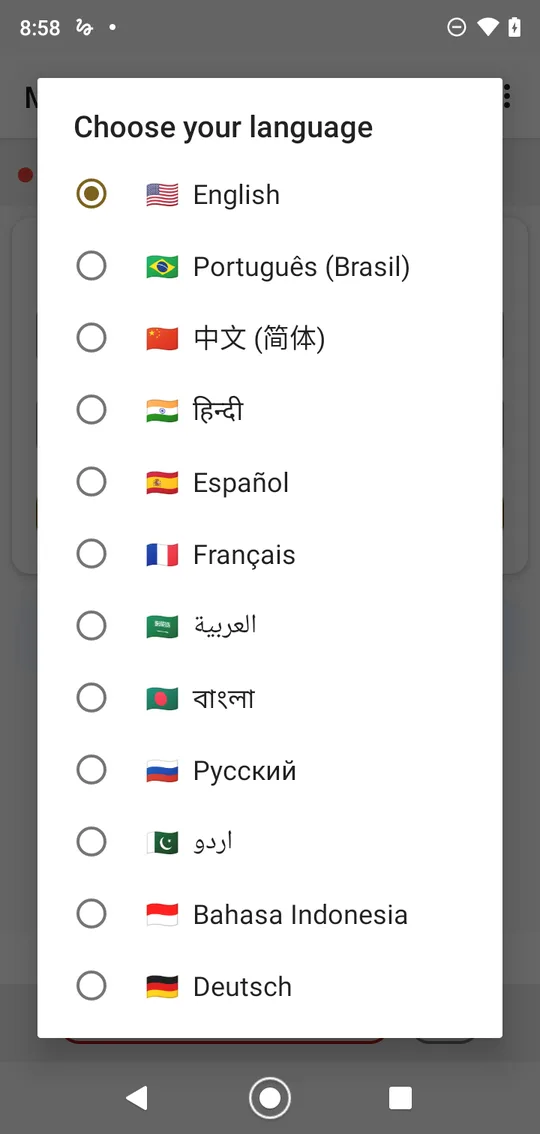
The first time the app opens it asks for your language. The phone’s own language and English are at the top of the list. You can change it later in ⋮ › Language.
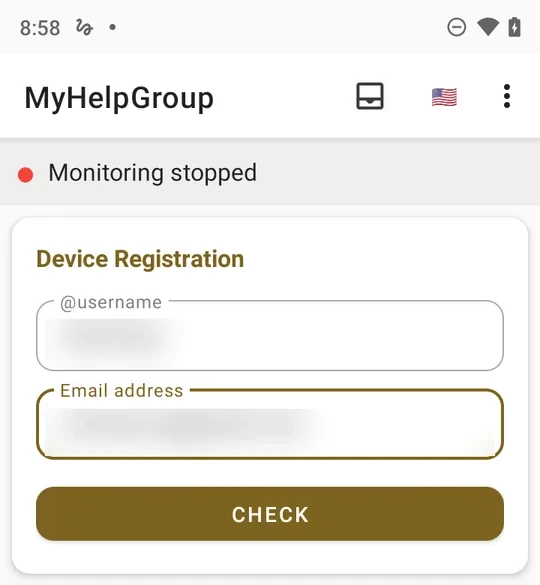
Then comes Device Registration:
- Type a @username — it starts with a letter and has 3 to 30 letters, numbers or underscores. This is how the others will find you, so choose one you can say out loud.
- Type your email address and tap Check.
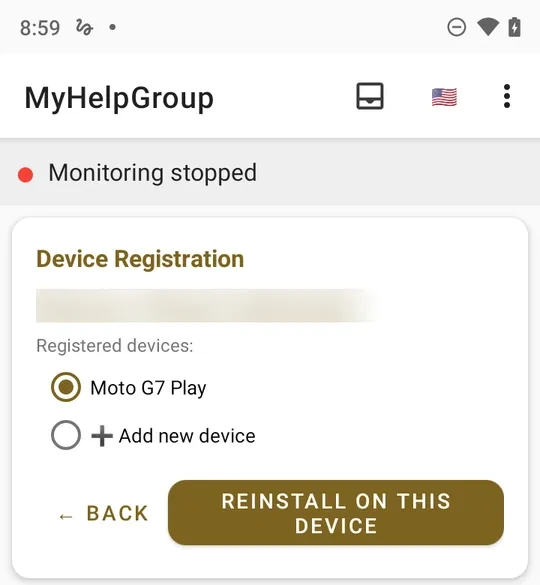
- If the username is new: type your full name and a device name (for example Maria’s phone), then tap Register. If you already have an account and this is another phone: choose Add new device and give it a name — or, if you are reinstalling on the same phone, pick it from the list and tap Reinstall on This Device.
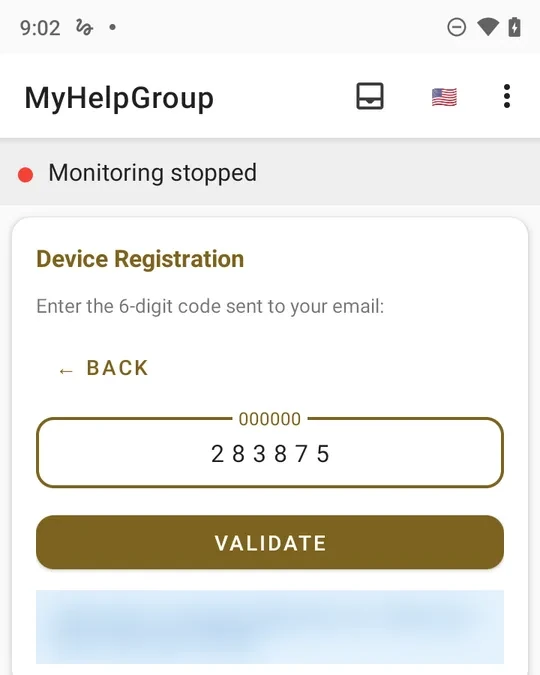
- A 6-digit code arrives by email. Type it and tap Validate. It can take a minute; look in the spam folder too. Only one code is sent per attempt.
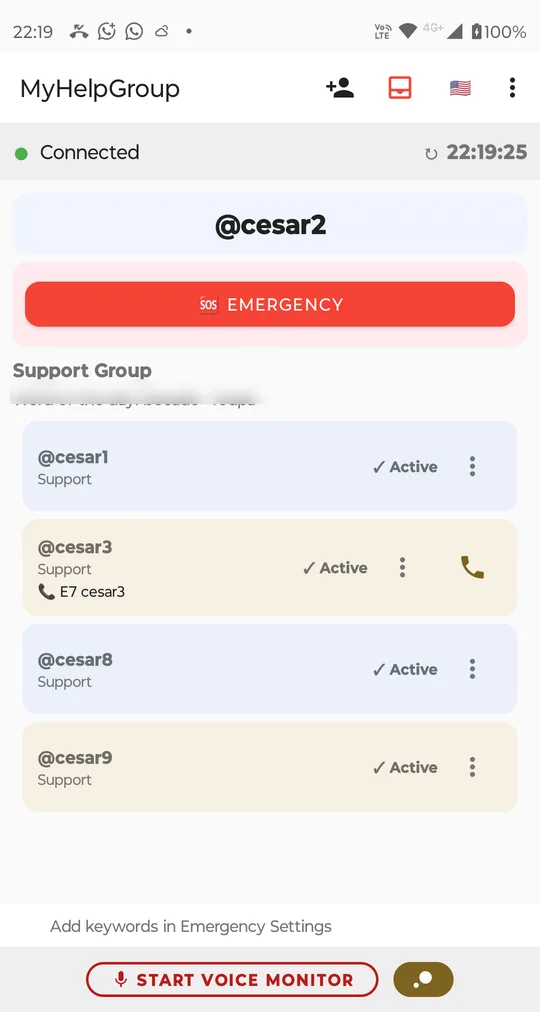
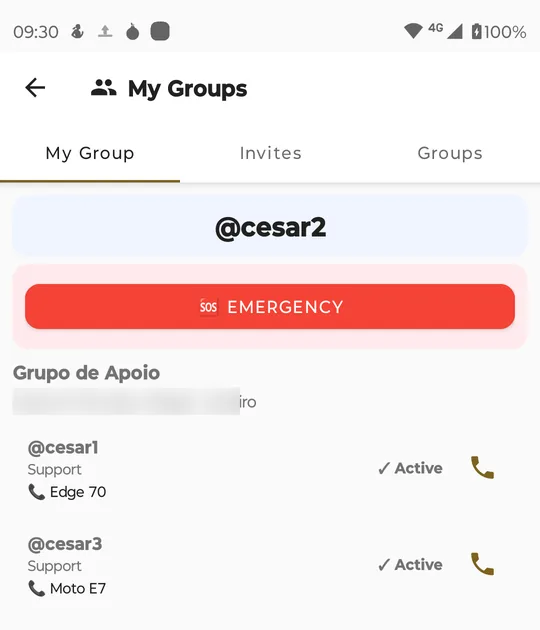
The main screen then shows your @username, the EMERGENCY button and, once you are in a group, the people in it, each on a row of alternating colour. In the top bar, from left to right:
- the person with a + — Send invite, to bring someone into the group (section 3);
- the Messages inbox — it changes colour when something new arrives, and stays red while an emergency is open;
- the flag — the language;
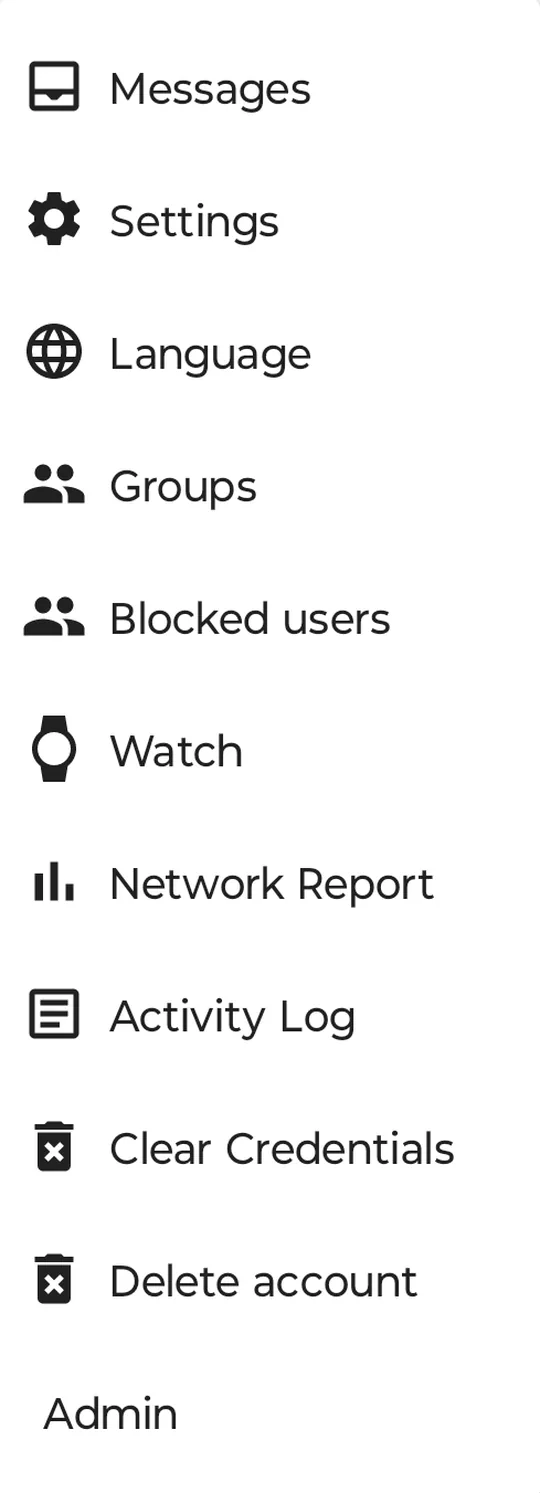
- ⋮ — everything else.
Each row of the group has its own ⋮, with what you can do about that person: link their phone, remove them from the group, report or block them.
2. What Android will ask
The app asks for its permissions one at a time, and only when it needs them:
| When | What it asks | Why |
|---|---|---|
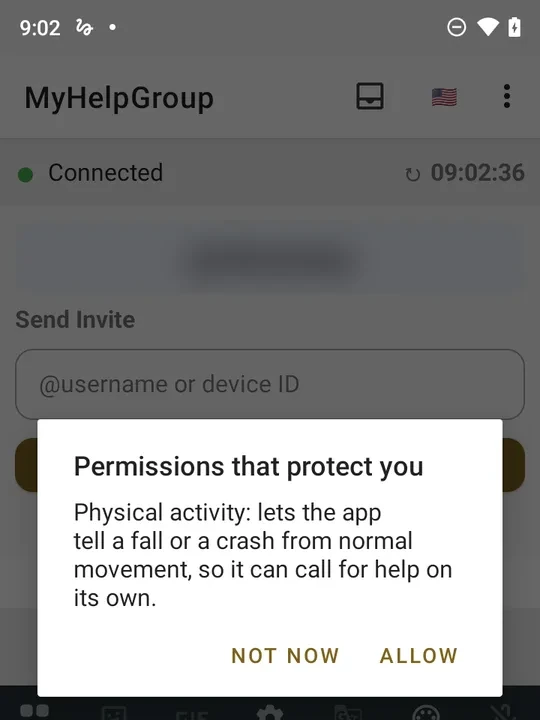
| Right after registering | Notifications (Android 13 and later), physical activity — explained first in Permissions that protect you | To show alerts; to tell a fall or a car crash from a dropped phone |
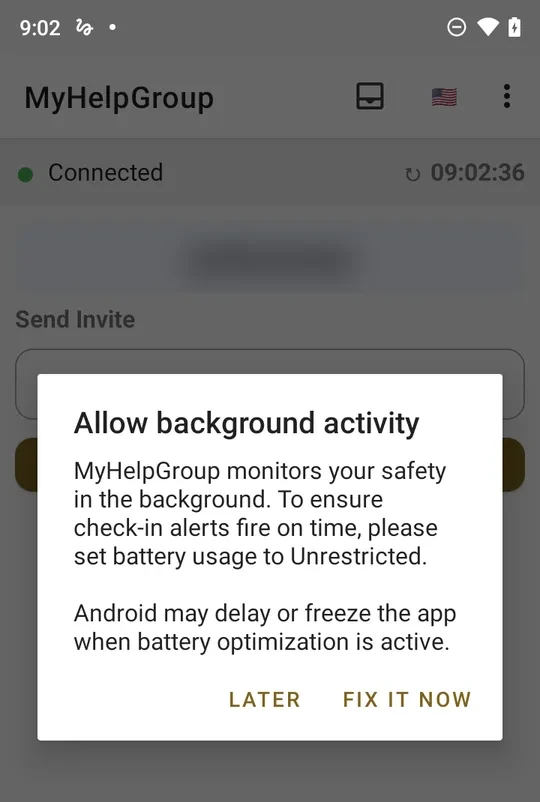
| Right after that | Allow background activity (no battery restriction) — tap Fix it now, then Allow | A frozen app cannot ask at the time you set |
| Right after that | Microphone for SOS | To record twenty seconds of voice when an emergency starts |
| Once you are in a group | Send and receive text messages | So an emergency still leaves without internet |
| Once you are in a group | Let emergencies open the screen (appear on top) | So an alert reaches the front while you use another app |
| Android 14 and later | Check-in screen blocked (full-screen notifications) | So the check-in can light a locked screen |
| Starting the voice monitor | Microphone | To hear your words |
| Viewing where someone is | Location | To open the map |
Before each Android question the app shows its own short explanation; tap Allow there and then Allow again in Android’s dialog.
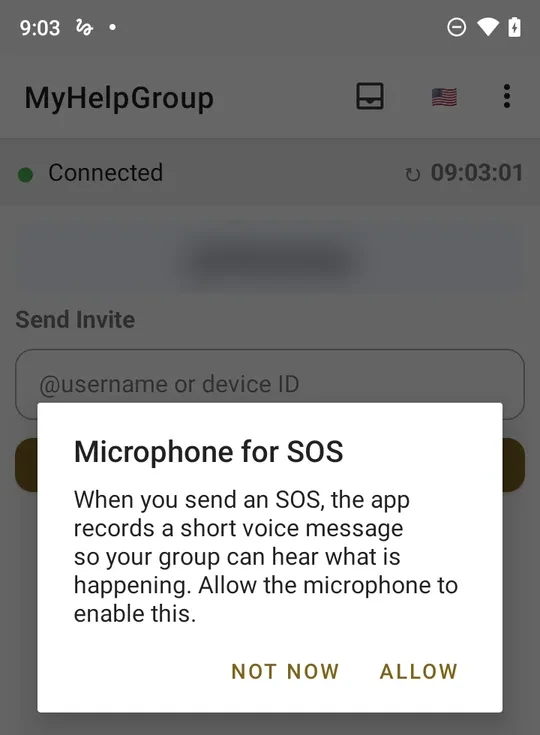
Say yes to all of them. If one was refused, Settings › Schedule shows a warning you can tap to fix it, including exact alarms, which Android grants in its own settings screen. Done: next, build the group.
3. Build the group
The group belongs to the person who needs help — the one whose phone will ask. On that phone:
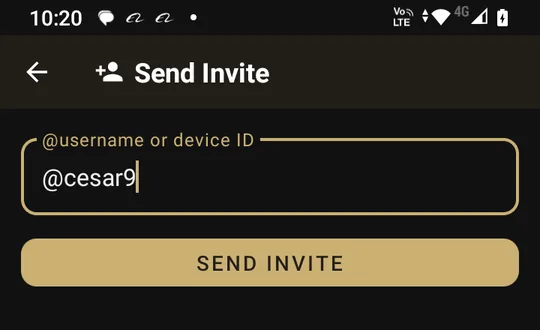
- Tap the person with a + in the main screen’s top bar. The Send Invite screen opens.
- In @username or device ID, type the @username of someone who will help and tap Send invite. The screen closes by itself; if something goes wrong — a @username that does not exist, no connection — the error shows under the field and nothing is sent.
- The person joins the main screen’s list as ⏳ Pending, and turns ✓ Active once they accept. Repeat for each person — up to 9 support members.
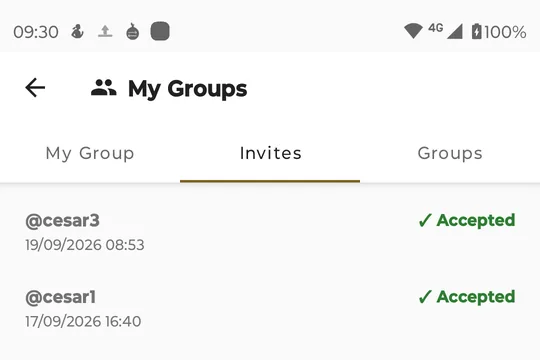
The same field is still in ⋮ › Groups, on the My Group tab; the Invites tab lists everything you sent: ⏳ Pending, ✓ Accepted or ✗ Declined.
Accept an invite
On the helper’s phone the invite arrives quietly — a notification that does not ring — and the Messages inbox in the bar changes colour. Open Messages (or ⋮ › Groups, Groups tab, which opens by itself when an invite arrives): the Pending invite card has Accept and Decline. Tap Accept. Nobody joins a group without accepting, and the sender sees the answer straight away: ⏳ Pending becomes ✓ Active.
The same person can help in several groups — a mother and a grandfather, say. Each accepted invite is one more group whose emergencies reach them.
Link each member’s phone number
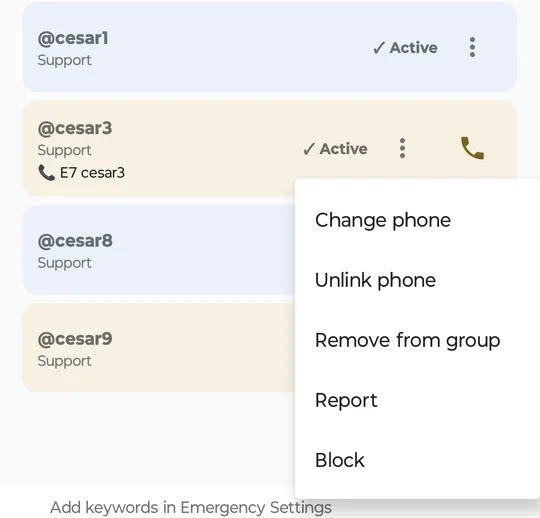
This is what lets an emergency go out as a text message when there is no internet. On the phone of the person the group is for, in the main screen’s member list, tap the ⋮ on a member’s row, choose Link phone and pick them from your contacts. The contact’s name shows under the @username, with a green phone beside it to call them directly. To change it later, the same ⋮ offers Change phone and Unlink phone.
The numbers stay on this phone; they are never sent to our server.
4. Settings
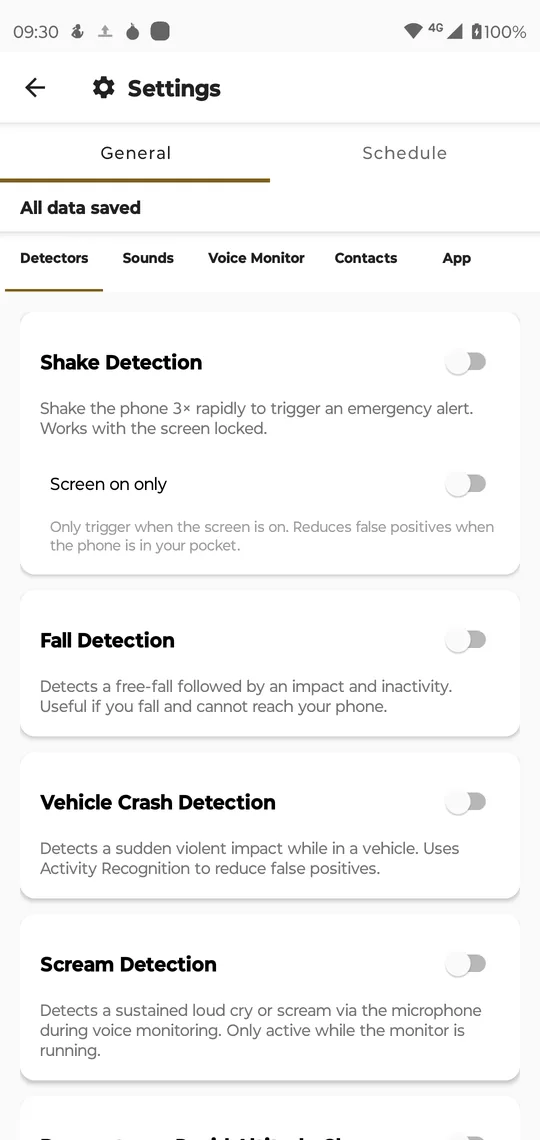
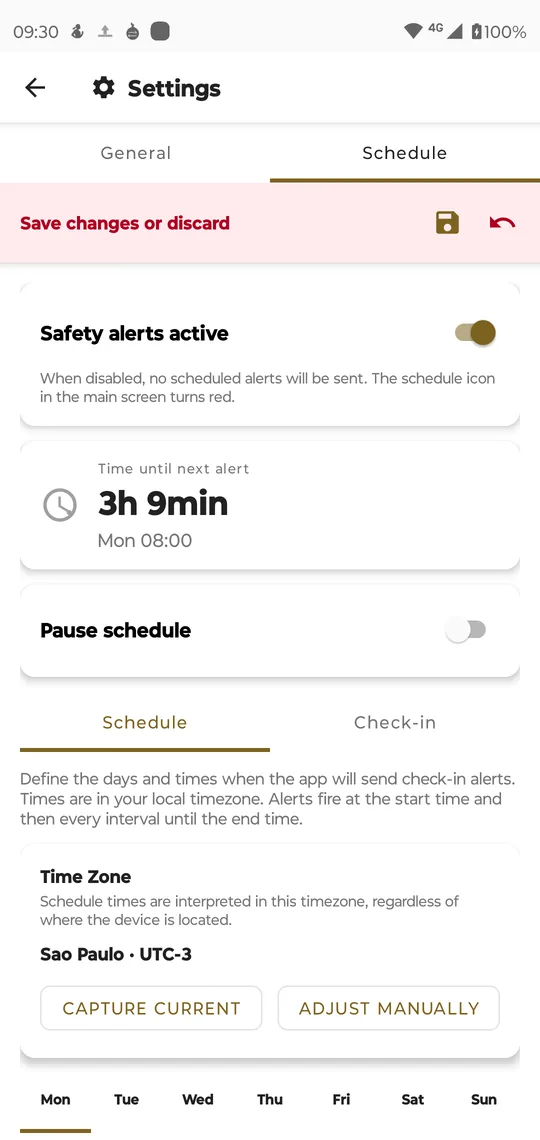
⋮ › Settings has two tabs. General holds five sections — Detectors, Sounds, Voice Monitor, Contacts and App. Schedule holds the schedule and the check-in.
When you change something, a pink bar appears: Save changes or discard. Tap the disk to save, or the curved arrow to undo. Nothing takes effect until you save; All data saved means it did.
Detectors
Seven sensors, all off when you install the app: a fall, a crash in a vehicle, a shake, a shout, a sudden change in air pressure, a run that stops, and the phone turned face down. Turn on only the ones that suit the person. Each one opens the same five-second countdown the button opens, so a false alarm can be cancelled.
Emergency contacts
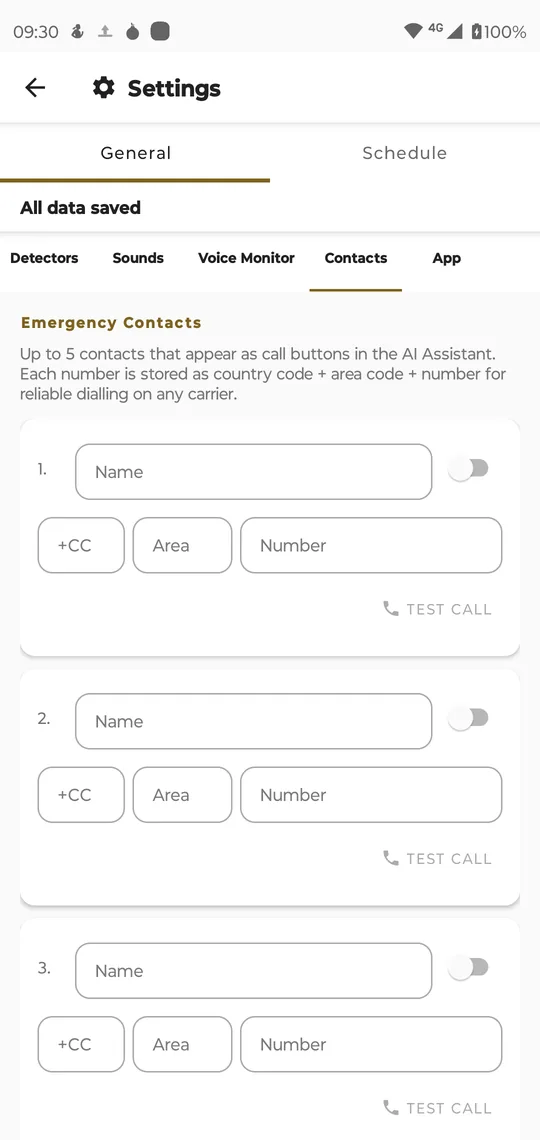
General › Contacts keeps up to five people or services outside the group — a doctor, a neighbour without the app. Each one has a name, country code, area code, number and an on/off switch. Test call checks the number. They appear in the Call Now list when there is no internet.
Voice monitor
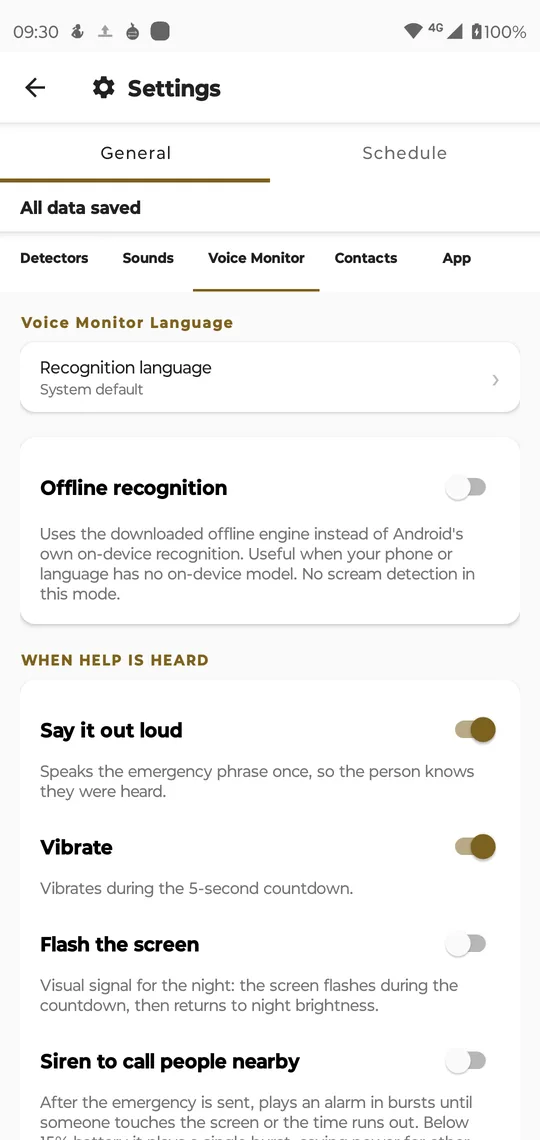
General › Voice Monitor, under Custom trigger words, is where you write up to five words that call the group — words the person would not say by accident. Without at least one word the monitor does not start. Then, on the main screen, tap START VOICE MONITOR before going to sleep. The phone asks for the microphone the first time.
Voice on SOS
General › Sounds ends with Record voice on SOS, on by default. With it on, every emergency records up to twenty seconds from the moment its countdown opens; the group hears it in the app, and everyone in the group with an e-mail address — the person it is for included — receives it by e-mail. While it records, Stop and send ends it early and Discard audio throws it away. Without the microphone permission, emergencies still go, without the voice. What happens to the recording is in How it works.
Location
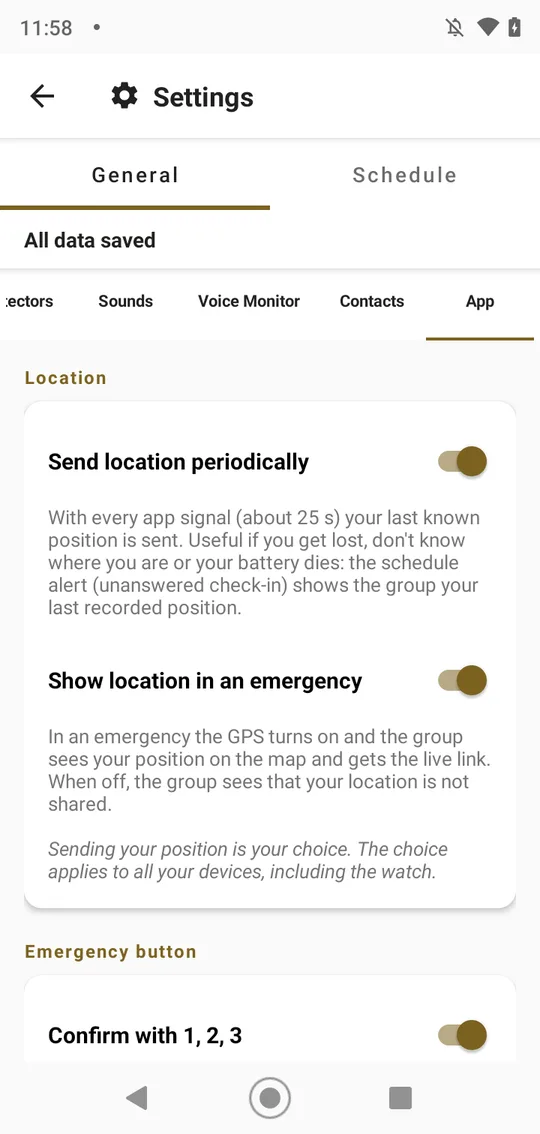
General › App opens with Location and two switches, both on by default. Send location periodically sends your last known position with every status message, about every 25 seconds. Show location in an emergency lets your group see you on the map, and share the live location link, during an emergency.
Keep both on. With Send location periodically on, your last position stays on record: if the signal drops, the battery dies or the person gets lost, the schedule alert and the emergency still show the group where they were last seen.
Turning one off asks first — Turn off periodic sending? or Turn off location in emergencies?, with Keep on and Turn off — and, while either is off, a warning stays under the switches: Location limited: your group and responders may not know where you are. That is what the group gets: Location not shared instead of the position, no map, no live link, and the voice e-mail without a position. An alert, such as a missed check-in, loses the position only when both switches are off — but with periodic sending off, the phone has stored no position for it to show (see the table below). Without a position, the group and the emergency services may not know where to look.
Android’s permission: pros and cons
It lives in Android Settings › Apps › MyHelpGroup › Permissions › Location. MyHelpGroup never asks for location “all the time”: outside an emergency it reads the GPS only while the app is open; during your own emergency it keeps reading with the screen off, through a service that shows a notification for as long as the emergency lasts.
| Choice | For | Against |
|---|---|---|
| Allow only while using the app (recommended) | In an emergency the GPS turns on even with the screen off, and your group follows you on the map. Outside one, nothing is read in the background. | The periodic position is the one from the last time the app was open: with the phone in a pocket all day, it can be old. |
| Ask every time / Only this time | Every use needs your say-so. | The grant ends when the app closes: an emergency raised by the watch, a sensor or the check-in may leave without a position. |
| Don’t allow | The app never reads where you are. | The emergency still goes out, but without a position: your group does not know where to look. |
| Use precise location off | The app gets only an approximate area. | The map points at a neighbourhood, not your door. Keep it on. |
The two switches: pros and cons
| Switch | On | Off |
|---|---|---|
| Send location periodically | Your last known position stays on record. If the signal drops, the battery dies or the person gets lost, the group still sees where they were last seen. | Nobody follows where you go day to day. But if the phone dies before you can ask for help, the group has nowhere to start looking. |
| Show location in an emergency | Your group sees you on the map, can tap Navigate and send the live link to a neighbour or the ambulance. | The group gets the alert with Location not shared: no map, no live link, and the voice e-mail without a position. To reach you, they will have to call and ask. |
What the group sees with each combination:
| Periodic sending | In an emergency | During your emergency | In an alert (missed check-in) |
|---|---|---|---|
| On | On | Map, live position and link | The last recorded position |
| Off | On | Map, live position and link | No position from the phone; only the watch’s, if the alert came from it |
| On | Off | Location not shared | The last recorded position |
| Off | Off | Location not shared | No position |
Turning a switch back on asks nothing; the position comes back with the GPS’s next reading.
The choice belongs to the account, so it applies to every phone and to the watch. What happens to the position, and why, is in the Privacy policy.
Schedule and check-in
On Settings › Schedule:
- Turn on Safety alerts active. The card below shows the time until the next check-in.
- Check the Time Zone. The times are read in that zone, wherever the phone travels. Capture current takes the phone’s zone.
- In the Schedule sub-tab, for each day (Mon … Sun), set the start time, the end time and how often to ask. Copy times to the other days saves repeating it seven times.
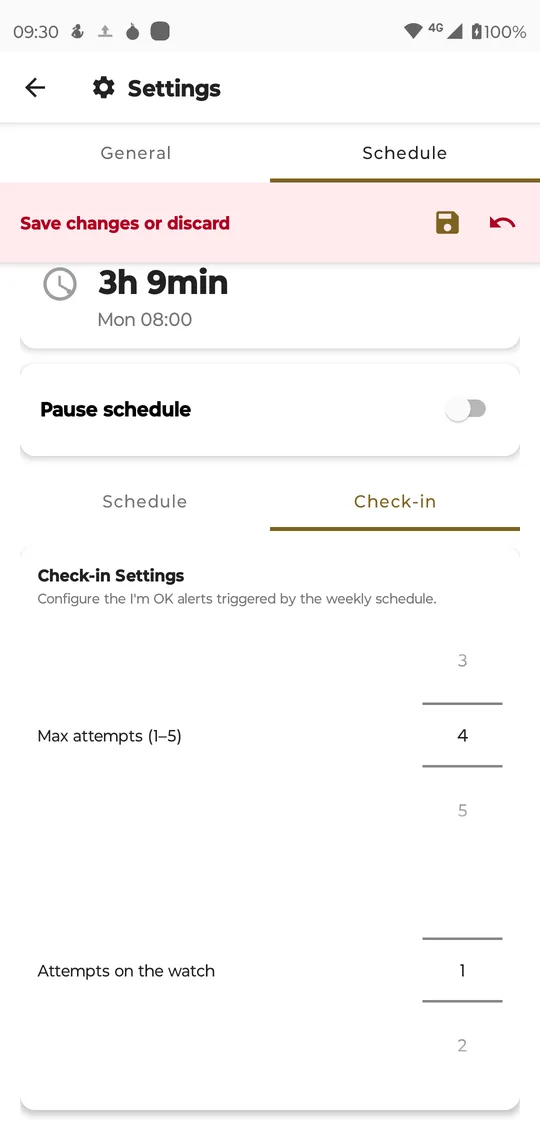
- In the Check-in sub-tab, set Max attempts (1–5) — how many times it asks before the group is told — and, if there is a watch, Attempts on the watch.
- Save.
Pause schedule stops the check-ins for 15 minutes to 48 hours without switching them off — for a hospital stay or a flight.
Nothing to set for the server’s watch: with Safety alerts active on, our server knows when each check-in is due, and if no device of yours reports it within 25 minutes, your group receives an alert. Pausing or switching off the schedule stops that too. See If the phone goes quiet.
When the phone asks, a screen says Are you OK? with one button, ✓ I’m OK, and the attempt number. If the last attempt goes unanswered, the screen turns red and counts down Sending in 5 s… with a CANCEL button. Only CANCEL means the person is all right: closing the screen does not stop it.
5. The EMERGENCY button — and the five seconds
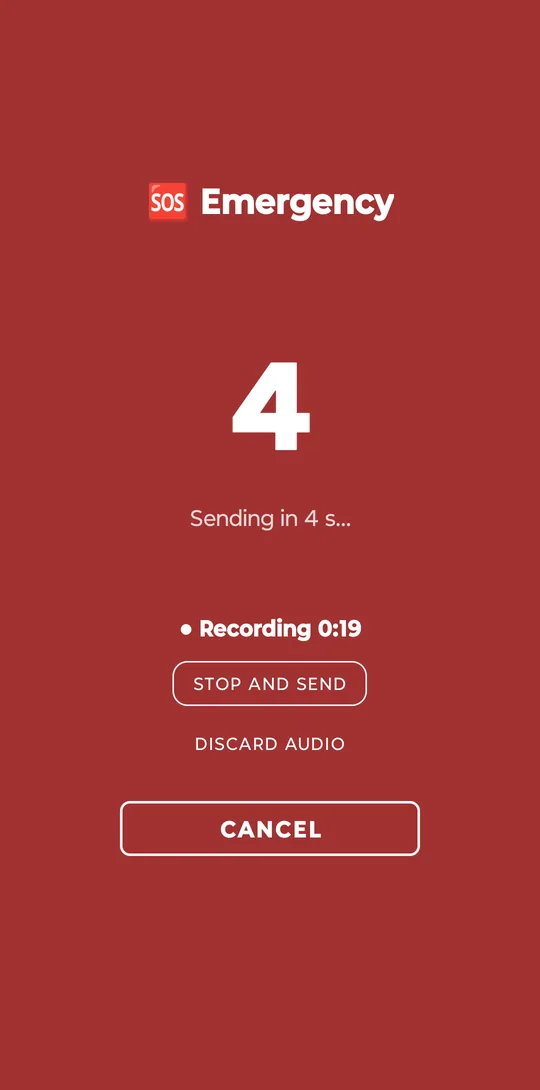
Tapping EMERGENCY opens a red screen that counts down five seconds, Sending in 5 s…, with CANCEL underneath. Cancel, or leave the screen, and nothing is sent. Let it run out and the whole group is called. The sensors open the same screen.
While it counts, the phone is already recording the person’s voice — up to 20 seconds, Recording 0:19. They can say what happened; Stop and send sends it before the end, Discard audio sends without the voice.
Show the person this screen on purpose, once, with the group warned beforehand — it is better met the first time as a rehearsal, cancelled before zero.
Once sent, the top of the main screen turns red: how many have seen it and how many are on their way, each member climbing seen it · on my way · arrived, the Call Now list, and End emergency for when it is over.
To bring in someone outside the group — a neighbour, the ambulance — tap Share live location and pick any messaging app. Whoever opens the link sees the position on a map, refreshed about every 25 seconds, until the emergency is closed.
When an emergency reaches your phone
On each group member’s phone the alert rings loud and vibrates, even on silent, and opens the EMERGENCY screen: who called, how (Manual SOS, the watch, a sensor) and Play message, with the recorded voice.
- Mute sound and Stop vibr. quiet the phone without answering.
- Confirm Reading tells the group you have seen it. So that nobody confirms by accident, the app asks for three taps: 1, 2 and 3.
- On the emergency’s card in Messages, tap On my way (1, 2, 3 again) when you leave. The button becomes I’ve arrived, to tap once you are there.
- View location / Navigate opens the Live location map, which follows the person while the emergency is open. Navigate opens your maps app with the route to them; I’ve arrived and Share live location are there too.
When everything is fine, tap End emergency (1, 2, 3). The alert disappears from every phone in the group.
6. An administrator (optional)
For a phone set up for someone else, open ⋮ › Admin on that phone:
- Choose one member of the group as Admin member.
- Set a password of at least 6 characters, and tick the items to hide — detectors, sounds, voice monitor, emergency contacts, schedule and check-in, leaving the group and others, fifteen in all.
- Tap Set admin.
From then on those settings are hidden on that phone. Unlock, with the password, shows them again for ten minutes. If the password is forgotten, Forgot password sends a six-digit code, valid for 30 minutes, to the administrator’s email. (Android does not allow screenshots of this screen, so there is no picture here.)
What each of the fifteen items hides, and every button of that screen, is explained in Group admin: help — the ? at the top of the screen opens it.
7. The watch
A watch with Wear OS 3 or later carries the SOS button and the check-in on the wrist. Install MyHelpGroup on the watch too — it is the same app, and it uses the phone’s language.
Link it.
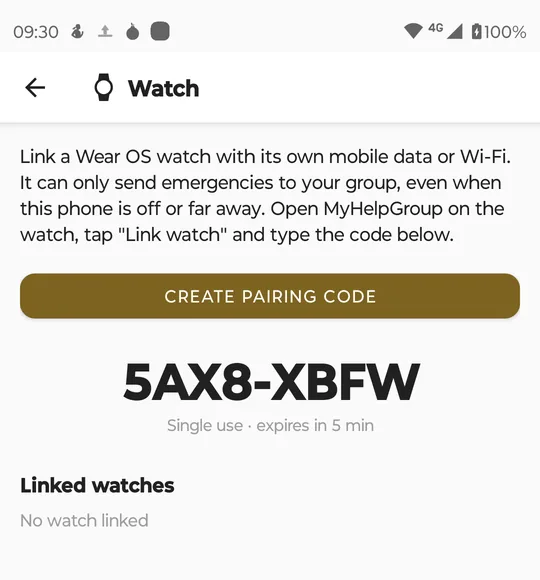
- On the phone: ⋮ › Watch › Create pairing code. An eight-letter code appears, like 5AX8-XBFW — single use, valid for five minutes.
- On the watch: open MyHelpGroup, scroll to Link, tap Enter code and type or dictate the code.
- The watch says Linked. The SOS now alerts your group. On the phone, the watch appears under Linked watches, with Unlink. Up to three watches per person.
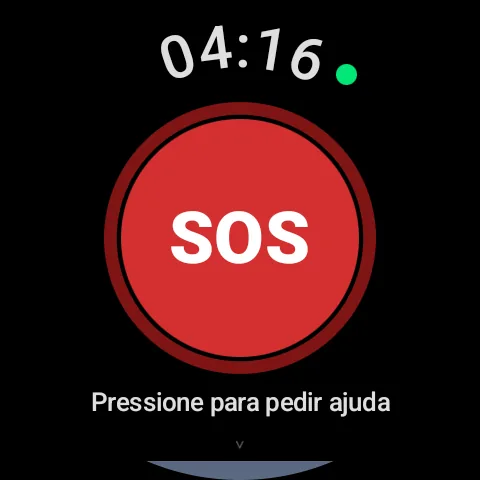
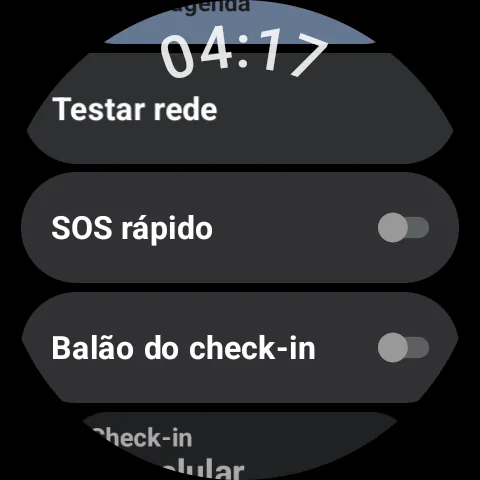
Ask for help. Hold SOS for a little over a second. The same five seconds open, with CANCEL. A coloured ring then shows how far the message got — waiting, received, seen, on the way, arrived. Quick SOS, in the watch menu, adds an SOS tile.
Voice on the watch. The first time it opens, the watch asks for the microphone along with its other permissions — allow it. From then on an SOS pressed on the watch records up to twenty seconds, while a white ring runs round the edge of the screen; the ring turns red while the recording is sent. It follows the phone’s Record voice on SOS switch; the watch has no switch of its own.
Sensors on the watch. On the phone, ⋮ › Watch › Watch sensors lists what the watch can notice — Fall, No pulse, High heart rate at rest, Low heart rate, Sudden running and Low watch battery notice — all off. Turn on the ones that suit the person; the watch asks for its permissions the first time. Below the switches: Age (sets the high heart rate limit), the two limits, and Save battery as it drops. Recent detections shows what fired and how it ended. What each one does is in How it works.
Move the check-in to the watch. With the watch linked and nearby, the phone’s ⋮ › Watch screen shows the “Are you OK?” check-in card: tap Move check-in to the watch. The question then arrives on the wrist as a notification that vibrates. Bring check-in back to the phone undoes it; Take over here lets the phone take it back if the watch is lost. If the watch asks for Allow exact alarms, allow it — without it the watch cannot keep the times.
The watch menu also has Test network, to check that the watch reaches our server, and Check-in balloon, which shows the check-in on the watch face.
8. When something is wrong
| What you see | What to do |
|---|---|
| The main screen says it is not connected | Check the internet, then open ⋮ › Network Report |
| A member shows Link phone | Their number is not linked yet — see step 3 |
| The check-in did not ask on time | Settings › Schedule: tap the warnings shown there (battery, exact alarms, full screen, appear on top) |
| The schedule icon on the main screen is red | Safety alerts active is off in Settings › Schedule |
| The voice monitor will not start | Add at least one word in Settings › General › Voice Monitor |
| The emergency went without a voice message | Check Record voice on SOS in Settings › General › Sounds, and the microphone permission in Android’s settings for the app |
| A setting is missing | An administrator has hidden it — ask them, or Unlock with the password |
| The watch did not answer | Open the app on the watch, check Test network, and try again with the phone nearby |
Anything else: write to support, with the phone model and the time it happened.